 BPN-TRACK
Screens for many accounts at once (dealers)
Dealers, distributors and BPN choose which screens their customers' logins see, for many accounts in one go.
How to
- Open Access & permissions, then Customer defaults.
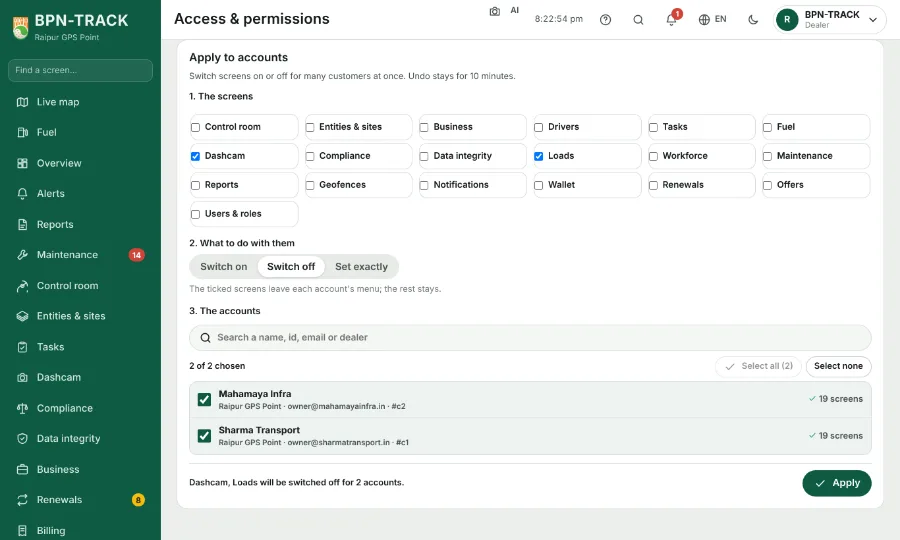
- Under Apply to accounts: tick the screens, choose Switch on, Switch off or Set exactly, and tick the accounts -- Smart search and Select all / Select none help with a long list.
- The line at the bottom says how many accounts will change. Tap Apply; Undo stays for ten minutes.
- A dealer's or a distributor's own menu is chosen the same way, by the level above it, from Users & roles or the Screens… button on Access & permissions, People.
- When you create a new login, the New user sheet shows the screens it starts with; change the ticks there to give it a different set.