 BPN-TRACK
Data points: every reading along the route
Show each position the vehicle sent as a fine dot, and tap one to read that moment.
How to
- On History, open Show on map and tick Data points.
- Fine dots appear along the route. Zoomed out, the app leaves out dots that sit on top of each other; zoom in to see them all.
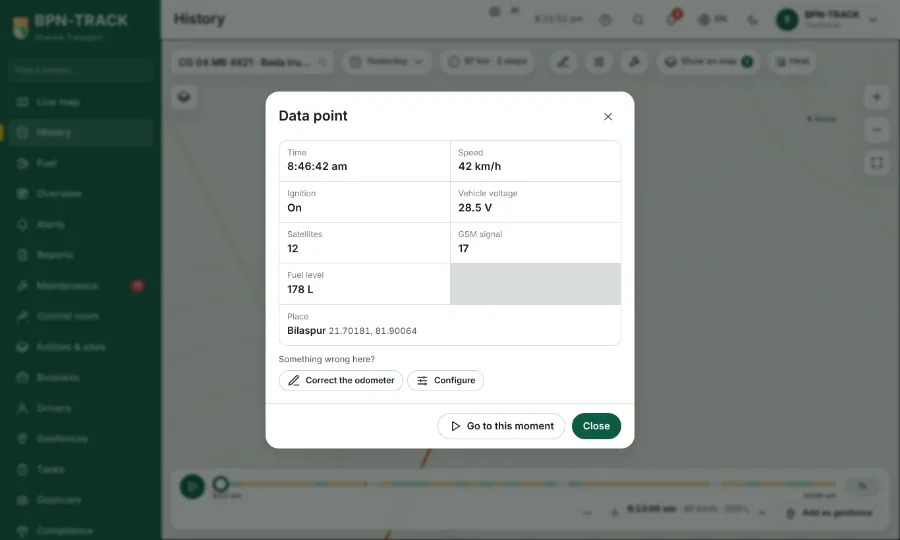
- Tap a dot: the Data point card shows the time, speed, ignition, fuel level and place, then the vehicle voltage, the satellites and the GSM signal.
- Where your login has the parameters switched on, the card's Parameters button lists every reading of that message.
- "Something wrong here?" offers the ways to put it right that your login has, such as Correct the odometer or Configure.